
Microsoft Dynamics GP AR Tools

Today I am going to review some of the features of the Professional Service Tools Library in Microsoft Dynamics GP for Receivables Management.

Originally Posted 10/11/12

(The attached video includes all of the information in the text below for those of you who prefer to “watch it” rather than “read it.”)

Today I am going to review some of the features of the Professional Service Tools Library in Microsoft Dynamics GP for Receivables Management.

Specifically we will:

  • Combine two customers into one account
  • Change the name of the Customer on all posted records
  • Change the Customer ID
  • Un-apply historical transactions so they may be voided or re-applied

Continue reading “Microsoft Dynamics GP AR Tools”

Microsoft Dynamics GP Customer Item Window with Substitutes

How can Microsoft Dynamics GP improve your customers’ experience when ordering your product? 

How can Microsoft Dynamics GP improve your customers’ experience when ordering your product? 

Originally Posted 9/28/12

(The attached video includes most of the information in the text below for those of you who prefer to “watch it” rather than “read it.”)

How can Microsoft Dynamics GP improve your customers’ experience when ordering your product?

  • Customer Items
  • Substitute Items

Continue reading “Microsoft Dynamics GP Customer Item Window with Substitutes”

Entering a Purchase Order using Navigation Lists in Microsoft Dynamics GP

Today I want to walk you through entering a purchase order in the Purchase Order Processing (POP) module from Microsoft Dynamics GP.

Originally Posted 9/20/12

(The attached video includes all of the information in the text below for those of you who prefer to “watch it” rather than “read it.”)

Today I want to walk you through entering a purchase order in the Purchase Order Processing (POP) module from Microsoft Dynamics GP.

Today I want to walk you through entering a purchase order in the Purchase Order Processing (POP) module from Microsoft Dynamics GP. We’re going to create this purchase order using the list on the navigation pane rather than using the traditional approach of pallets or the menu at the top.

From the Purchasing button on the left side of your Dynamics GP window click on the purchasing button. In the white area above the buttons you will see several options, click on Vendors and you will notice that a list of vendors appears in your window.

Continue reading “Entering a Purchase Order using Navigation Lists in Microsoft Dynamics GP”

Payables Check Stub Options in Microsoft Dynamics GP

Today I’d like to review all of the different options available to display credit memos and other documents on Microsoft Dynamics GP check stubs.

Today I’d like to review all of the different options available to display credit memos and other documents on Microsoft Dynamics GP check stubs.

Originally Posted 9/20/12

(The attached video includes all of the information in the text below for those of you who prefer to “watch it” rather than “read it.”)

On a recent customer visit, we heard about an issue that the payables staffer was having, which was ensuring that credit memos show up correctly on check stubs. Today I’d like to review all of the different options available to display credit memos and other documents on Microsoft Dynamics GP check stubs.

Continue reading “Payables Check Stub Options in Microsoft Dynamics GP”

How Microsoft Dynamics GP Inventory Kits Work (video attached)

I’d like to walk you through how Kits are setup in Microsoft Dynamics GP Inventory Control and how they work in Sales Order Processing.

I’d like to walk you through how Kits are setup in Microsoft Dynamics GP Inventory Control and how they work in Sales Order Processing.

Originally Posted 8/24/2012

I’d like to walk you through how Kits are setup in Microsoft Dynamics GP Inventory Control and how they work in Sales Order Processing.

What is a Kit?

Continue reading “How Microsoft Dynamics GP Inventory Kits Work (video attached)”

Save 87+ minutes a year when using Microsoft Dynamics GP!

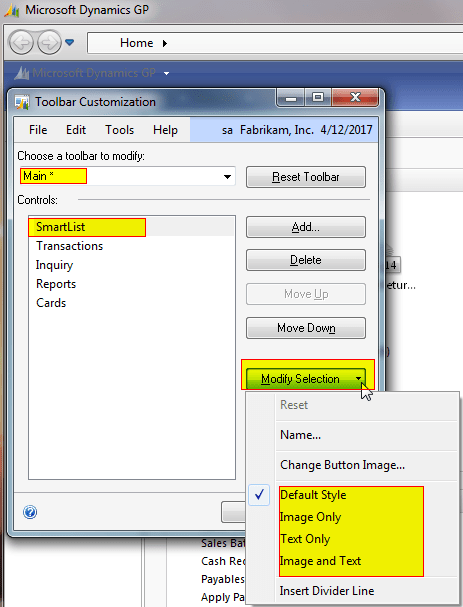
In the image, I right mouse clicked on the blue toolbar, opening the Microsoft Dynamics GP Toolbar Customization Window. I then chose the Main toolbar, the SmartList control that I added and clicked on Modify Selection. From here I can change the icon to text, text and an icon or image, plus more.

In the image, I right mouse clicked on the blue toolbar, opening the Microsoft Dynamics GP Toolbar Customization Window. I then chose the Main toolbar, the SmartList control that I added and clicked on Modify Selection. From here I can change the icon to text, text and an icon or image, plus more.

Originally Posted August  2012
In the image, I right mouse clicked on the blue toolbar, opening the Microsoft Dynamics GP Toolbar Customization Window. I then chose the Main toolbar, the SmartList control that I added and clicked on Modify Selection. From here I can change the icon to text, text and an icon or image, plus more.

Making GP changes like this can save you real time. If you open SmartList 10 times a day and this saves you a total of 20 seconds a day. That’s 5200 seconds a year or 87 minutes a year, I’m being generous saying it’ll save you 2 seconds every time you open SmartList.

Do you print a lot of Microsoft Dynamics GP monthly reports?

You can combine the supporting documentation in Microsoft Dynamics GP to print with just a few keystrokes. Did you know that? 

You can combine the supporting documentation in Microsoft Dynamics GP to print with just a few keystrokes. Did you know that? 

Originally Posted August 2, 2012
You can combine the supporting documentation in Microsoft Dynamics GP to print with just a few keystrokes. Did you know that?

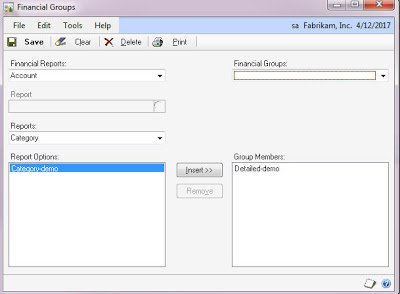
Within each series, under Reports is an option for “Groups.” You can use this window to “group” together all the reports within this series that you want to print.

Keep in mind that you do not get the ability to change the option with this feature, so you must put in criteria that can remain static. For example, do not enter a date range of 01/01/11 – 01/31/11, instead use “Beginning Last Month” to “End of Last Month.”

Also keep in mind that you need to set the destination each option to the printer so they’ll print automatically rather than ask you each time.

Once you create a group for each series, you can use “Combine Groups” under Reports to combine the groups.

Dynamics GP Payables Management or Fancy Check Writing System?

Do not use Dynamics GP Payables Management for a fancy check writing system, use it for Managing Payables!

Tips on Microsoft Dynamics GP from Belinda Allen.

Originally Posted 8/1/2012

Do not use Dynamics GP Payables Management for a fancy check writing system, use it for Managing Payables!
Enter invoices in every day, use the correct payment terms (making sure they are setup right) and then the system will help you:
  • Determine when to pay an invoice, so you keep the cash flow as long as possible
  • Pay Invoices on time, so your credit stays good
  • Allow you use the system to manage disputed invoices (by using the hold feature)
  • Look Good to your boss, because at month end your work will be all done!

Microsoft Dynamics GP Inventory Item Cost

In this video I will walk you through the scenario where receiving items (both with and without Lot Numbers) in Microsoft Dynamics GP can create an entry where the Lot Number is duplicated with a quantity of 1 with a Cost much higher than the remaining items.

In this video I will walk you through the scenario where receiving items (both with and without Lot Numbers) in Microsoft Dynamics GP can create an entry where the Lot Number is duplicated with a quantity of 1 with a Cost much higher than the remaining items.

Originally Posted 8/1/2012

In this video I will walk you through the scenario where receiving items (both with and without Lot Numbers) in Microsoft Dynamics GP can create an entry where the Lot Number is duplicated with a quantity of 1 with a Cost much higher than the remaining items.

Continue reading “Microsoft Dynamics GP Inventory Item Cost”

Microsoft Dynamics GP Bank Rec out of balance to your GL?

There are two common reasons why the Microsoft Dynamics GP Bank Reconciliation Checkbook Balance and the General Ledger Checkbook Balance do not match.

Originally Posted 7/31/2012

Microsoft Dynamics GP User Group.

The following is an exerpt from the GPUG Tech Tips for August 2012.

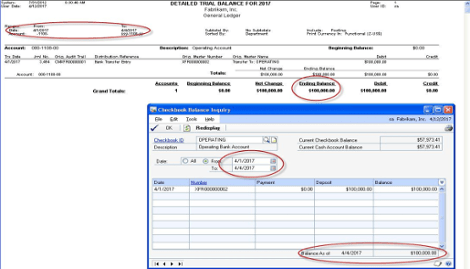
There are two common reasons why the Microsoft Dynamics GP Bank Reconciliation Checkbook Balance and the General Ledger Checkbook Balance do not match.

Most Common Reasons for Variances in Balances
There are two common reasons why the Microsoft Dynamics GP Bank Reconciliation Checkbook Balance and the General Ledger Checkbook Balance do not match.


Continue reading “Microsoft Dynamics GP Bank Rec out of balance to your GL?”