Microsoft Dynamics GP – Miscellaneous Check

Need to print a single check for a one time purchase using Microsoft Dynamics GP?

In this video, I’ll show you how to do just that!  I’ll use the Miscellaneous Check Entry Window to avoid having to setup a vendor to get 1 check.

Originally Posted 5/4/2012

Need to print a single check for a one time purchase using Microsoft Dynamics GP?

In this video, I’ll show you how to do just that!  I’ll use the Miscellaneous Check Entry Window to avoid having to setup a vendor to get 1 check.

Continue reading “Microsoft Dynamics GP – Miscellaneous Check”

Microsoft Dynamics GP Inventory cost variance on PO’s (with video)

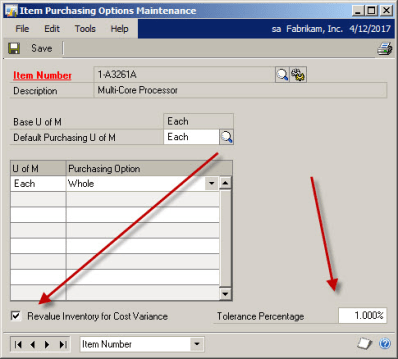
What happens if you receive a shipment in Microsoft Dynamics GP Purchase Order Processing and the invoice comes in for a different dollar amount? 

What happens if you receive a shipment in Microsoft Dynamics GP Purchase Order Processing and the invoice comes in for a different dollar amount? 

Originally Posted 5/2/12

Q:  What happens if you receive a shipment in Microsoft Dynamics GP Purchase Order Processing and the invoice comes in for a different dollar amount?
A:   That depends on how you set up the item in inventory.

Continue reading “Microsoft Dynamics GP Inventory cost variance on PO’s (with video)”

Microsoft Dynamics GP SmartList Comparison Fields

This is a cool way to use SmartList! Comparing 2 similar Microsoft Dynamics GP fields makes creating a list of Customers over their credit limit a snap! See how I do it.

Originally Posted 6/21/2011

This is a cool way to use SmartList! Comparing 2 similar Microsoft Dynamics GP  fields makes creating a list of Customers over their credit limit a snap! See how I do it.                         

Continue reading “Microsoft Dynamics GP SmartList Comparison Fields”

What’s the deal with the Apply Date in Microsoft Dynamics GP Payables?

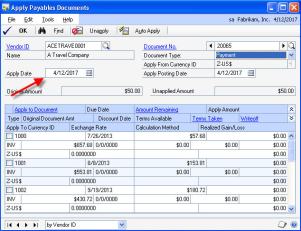
The Apply Date that shows in the apply window for Microsoft Dynamics GP Payables has an important role. The apply date that is used when the invoice becomes fully applied will become the “Date Invoice Paid Off.”

The Apply Date that shows in the apply window for Microsoft Dynamics GP Payables has an important role. The apply date that is used when the invoice becomes fully applied will become the "Date Invoice Paid Off."
Posted April 2012
The Apply Date that shows in the apply window for Microsoft Dynamics GP Payables has an important role. The apply date that is used when the invoice becomes fully applied will become the “Date Invoice Paid Off.”
This field of “Date Invoice Paid Off” will determine when to display an invoice on a Historical Aged Trial Balance AND when to include the invoice’s 1099 amounts on the 1099.

User Defined Fields in Microsoft Dynamics GP Smartlist?

I wanted to share with you another use for Microsoft Dynamics GP User Defined fields.

I wanted to share with you another use for Microsoft Dynamics GP User Defined fields.

Continue reading “User Defined Fields in Microsoft Dynamics GP Smartlist?”

Add Microsoft Dynamics GP SmartList to your toolbar

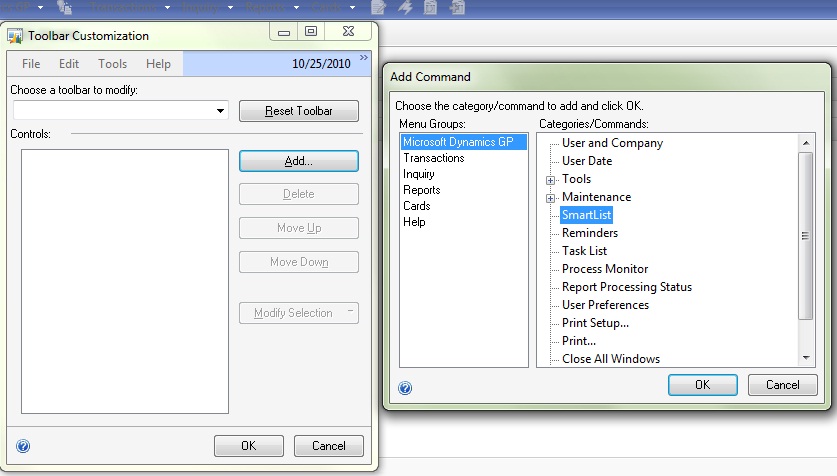
Add Microsoft Dynamics GP SmartList to your toolbar, it’s easy!

Add Microsoft Dynamics GP SmartList to your toolbar, it’s easy!

2012-04-02_Toolbar

Right mouse click on your GP toolbar, choose the Add button on the Right. Then click through the menu bar as you would to open SmartList.
Once SmartList is highlighted, click OK!


Why do we have to age Microsoft Dynamics GP Receivables?

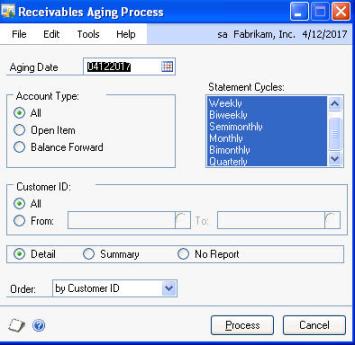
I frequently get asked “Why is there a separate step to age Microsoft Dynamics GP Accounts Receivable?” 

Posted 4/1/2012

I frequently get asked "Why is there a separate step to age Microsoft Dynamics GP Accounts Receivable?" 

I frequently get asked “Why is there a separate step to age Microsoft Dynamics GP Accounts Receivable?”

Believe it or not, it’s actually a benefit to you.

I have a client who charges their customer a finance charge for all invoices 30 days or older; however experience tells them that many times they charge finance charges, only to receive the payment within a day or two causing them the extra work of writing off the finance charge.

We worked together and created a very smart plan. We change the aging periods from 1-30 to 1-45, then age and charge finance charges for invoices over 45 days old. We then change the aging period back to 1-30 and age again. This method, only ended up charging finance charges for invoices over 45 (even though their customer is expecting over 30)days old.

There are many reasons you may want or need control over aging, and with GP you have it!

It’s Microsoft Dynamics GP “Payables Management” NOT “Invoices I need to pay”

One of the most frustration situations I come across is when I walk into an existing user of Microsoft Dynamics GP only to find they are using Payables Management (PM) as a fancy check writer rather than a tool to manage payables. 

Originally Posted 3/29/2012
One of the most frustration situations I come across is when I walk into an existing user of Microsoft Dynamics GP only to find they are using Payables Management (PM) as a fancy check writer rather than a tool to manage payables. 
One of the most frustration situations I come across is when I walk into an existing user of Microsoft Dynamics GP only to find they are using Payables Management (PM) as a fancy check writer rather than a tool to manage payables.

I often wish I had a portable soap box to stand on when I say “enter all of your every day and you’ll reap all kinds of benefits!”

If you enter ALL invoices in PM every day, you can take advantage of tools. You can answer all of the following questions:
1) How much do we have outstanding right now?
2) What’s due through next week?
3) How much is past due?
and more…

This is what PM is all about. Bank Reconciliation can print a check, payables is designed to help you track invoices by vendor, update the GL of transactions from invoices and their payments, determine when an invoice is due and when it’s best to pay… Basically its a way to MANAGE your payables, hence the name Payables Management.

Did you know there is a report called Cash Requirements where you can enter a date and the system will show you all invoices due by that date with a total dollar amount?

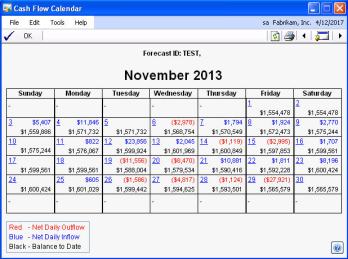
Did you know the Cash Flow Module will look at PM and determine how much cash is due to flow out of the company by that due date?

Don’t do extra work, let PM help you!

Import of Payroll to Microsoft Dynamics GP from Outside Payroll Service

This video shows how I suggest data be imported if you use an outside payroll service like ADP, Paychex, etc. I show an Import I setup Integration Manager and Microsoft Dynamics GP.

Originally Posted 3/21/12

This video shows how I suggest data be imported if you use an outside payroll service like ADP, Paychex, etc. I show an Import I setup Integration Manager and Microsoft Dynamics GP.

Continue reading “Import of Payroll to Microsoft Dynamics GP from Outside Payroll Service”

Microsoft Dynamics GP Bi-Weekly Payroll vs. Monthly Deductions

Using Microsoft Dynamics GP, if you do Bi-weekly payrolls, you pay employees 26 times a year.  If you have monthly deductions, like health insurance, you have a monthly amount for each employee to deduct.

Using Microsoft Dynamics GP, if you do Bi-weekly payrolls, you pay employees 26 times a year.  If you have monthly deductions, like health insurance, you have a monthly amount for each employee to deduct.

Posted 2012

Using Microsoft Dynamics GP, if you do Bi-weekly payrolls, you pay employees 26 times a year.  If you have monthly deductions, like health insurance, you have a monthly amount for each employee to deduct.

Problem? If you annualized the monthly deductions and divide by 26 and use that amount each pay period, than you’ll have great difficulty balancing your payroll accounts in the General Ledger. Also, if an employee leaves your company, it’s likely you’ll have to settle up for the difference in the deductions, which usually means the employee will owe you money.
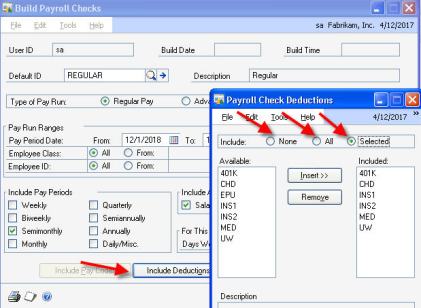
How to fix it? Divide the monthly deduction amount by half and take out of each pay period for the first 2 pay periods of the month.
If a month has 3 pay periods, use a different “Build Payroll Check” ID and on the Deduction and Benefit button, use the Selected radio button and do not select those monthly deductions. This means a couple of pay periods during the year the employee will get more money which will make them happy. Also, you’ll be able to balance your General Ledger payroll accounts more easily! Its a win win!